PocketMagic

PocketMagic

Where Technology meets magic


Android
45 Posts
BlackBerry
4 Posts
Electronics
68 Posts
Hardware
120 Posts
High Voltage
49 Posts
iPhone
4 Posts
Linux
2 Posts
Nuclear
20 Posts
Optics
11 Posts
Photography
7 Posts
Photoshop
3 Posts
Research
19 Posts
Reviews
18 Posts
Robotics
8 Posts
Security
7 Posts
Software
73 Posts
Symbian
2 Posts
Tubes
18 Posts
Windows
3 Posts
Windows Mobile
11 Posts

Top Articles!       See PocketMagic on Facebook


uRADMonitor - Online Radiation monitoring station | 15019 Views | Rate 69.86
uRADMonitor - Online Radiation monitoring station
Bluetooth and iOS - Use Bluetooth in your iPhone apps | 18575 Views | Rate 59.54
Bluetooth and iOS - Use Bluetooth in your iPhone apps
NMEA GPS Library for AVR Microcontrollers | 4903 Views | Rate 55.72
NMEA GPS Library for AVR Microcontrollers
Programmatically Injecting Events on Android - Part 2 | 5156 Views | Rate 45.23
Programmatically Injecting Events on Android - Part 2
Building a robot – Part 2 | 4734 Views | Rate 44.66
Building a robot – Part 2
Simple Switched power Supplies | 16368 Views | Rate 42.19
Simple Switched power Supplies
Capacitor Discharge Microspot Welder / Cutter | 11488 Views | Rate 36.59
Capacitor Discharge Microspot Welder / Cutter
Atmega8 and Nokia 5110 LCD  | 1600 Views | Rate 34.78
Atmega8 and Nokia 5110 LCD


Android WebBrowser using WebView


By Radu Motisan Posted on March 18th, 2011 , 2760 Views (Rate 3.46)


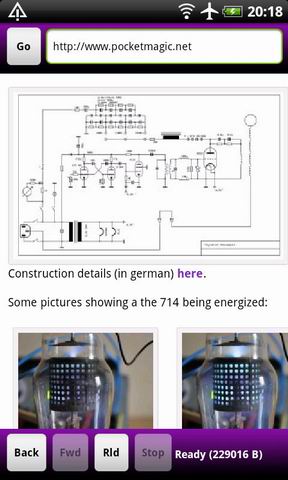
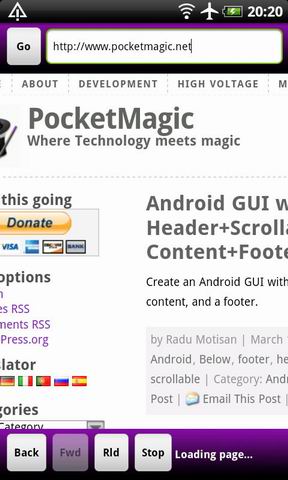
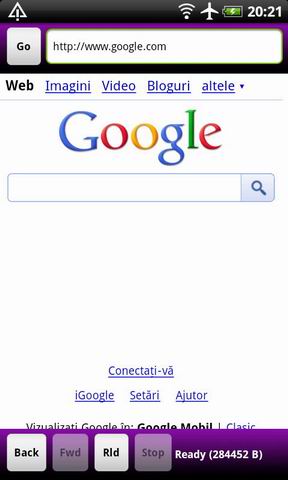
Based on the info in my previous article I'd like to present the steps to create a simple Android Internet Browser application, with a header, a WebView central area and a footer - all dynamical, without using XMLs:

Some details:

  • In AndroidManifest.xml, you will need to include the INTERNET permissions:
    1. <uses-permission android:name="android.permission.INTERNET" />
  • The interface: you can learn how to use the nice RelativeLayout control and create the interface, as per my previous article on this topic. The user controls are the top address field and the GO button, the BACK, FORWARD, RELOAD and STOP at the bottom.
  • The WebView control: will handle all the HTML rendering and other complex function related to internet browsers. The webview is created between the Header and the Footer, and the content is finger-friendly (finger scrollable). By default the zoom level has been configured to fit the pages in the screen's width.
  • For the WebView control I've enabled JavaScript support and added a WebViewClient class to intercept the various events like page loading events (start/ready):
    1.  
    2. m_web.getSettings().setJavaScriptEnabled(true);
    3. m_web.setWebViewClient(new MyWebViewClient());
    4.  

    Note: The WebView Client class is quite simple:


    1.  
    2. private class MyWebViewClient extends WebViewClient {
    3. @Override
    4. public void onPageStarted(WebView view, String url, Bitmap favicon) {
    5. Log.d(LOG_TAG, "onPageStarted");
    6. m_tv.setText("Loading page...");
    7. //stop button is enabled only when pages are loading
    8. m_bButStop.setEnabled(true);
    9. }
    10. @Override
    11. public void onPageFinished(WebView view, String url) {
    12. Log.d(LOG_TAG, "onPageFinished");
    13. m_tv.setText("Ready ");
    14. //stop button is disabled when pages are already loaded
    15. m_bButStop.setEnabled(false);
    16. // This call inject JavaScript into the page which just finished loading.
    17. m_web.loadUrl("javascript:window.HTMLOUT.showHTML('<head>'+document.getElementsByTagName('html')[0].innerHTML+'</head>');");
    18. // adjust prev/next buttons, only if history is available
    19. m_bButBack.setEnabled(m_web.canGoBack());
    20. m_bButFwd.setEnabled(m_web.canGoForward());
    21. }
    22.  
    23. @Override
    24. public boolean shouldOverrideUrlLoading(WebView view, String url) {
    25. view.loadUrl(url);
    26. return true;
    27. }
    28.  
    29. }
    30.  

    Details:

  • When the page starts loading (onPageStarted) we set the proper content in the status textview, and we enable the STOP button. This button is enabled when a page is loading, and is disabled when the page is completely loaded, because it doesn't make sense to stop something that has already finished loading, does it?
  • When the page is loaded (onPageFinished) we show "Ready" in the status textview, we disable the STOP button, and we inject a JavaScript so we would have access to the HTML code of the page we've loaded.
    To run the Javascript we need to call :
    1.  
    2. // set java script used to get the HTML code
    3. m_web.addJavascriptInterface(new JavaScriptInterface(), "HTMLOUT");
    4.  
  • Where the JavaScriptInterface is a simple HTML reader based on the "showHTML" function (that we call after a page is loaded):
    1.  
    2. // Used with Webview, to get the HTML code
    3. class JavaScriptInterface{
    4. public void showHTML(String html) {
    5. m_nHTMLSize = 0;
    6. if (html !=null) {
    7. //int i = html.lastIndexOf(""); //search for something in the text
    8. m_nHTMLSize = html.length();
    9. Log.d(LOG_TAG, "HTML content is: "+html+"\nSize:"+m_nHTMLSize+" bytes");
    10.  
    11. }
    12. }
    13. }
    14.  
  • The Third of the page-related events, is shouldOverrideUrlLoading:
    1.  
    2. @Override
    3. public boolean shouldOverrideUrlLoading(WebView view, String url) {
    4. view.loadUrl(url);
    5. return true;
    6. }
    7.  
  • This is a very important piece of code, we use this to allow our Android Internet Browser to follow newly pressed links and handle them inside our own Browser.
  • For further details, see the code, it is easy and self explanatory:
    Android Internet Browser Webview Sample


    More on PocketMagic:

    How to set the AVR Fusebits | 1770 Views | Rate 23.92
    How to set the AVR Fusebits
    ATMega128 and HD44780 LCD using 3 Wires with the 74HC164 | 2111 Views | Rate 22.95
    ATMega128 and HD44780 LCD using 3 Wires with the 74HC164
    Repairing a Victoreen CDV-700 6B Dosimeter  | 181 Views | Rate 22.63
    Repairing a Victoreen CDV-700 6B Dosimeter
    Dual H-Bridge for controlling two motors | 1267 Views | Rate 21.84
    Dual H-Bridge for controlling two motors
    USBAsp -  AVR USB Programmer  | 8218 Views | Rate 21.18
    USBAsp - AVR USB Programmer
    Detecting an ultrasonic beacon | 913 Views | Rate 19.43
    Detecting an ultrasonic beacon

    10 Responses to “Android WebBrowser using WebView”

    1. 1
      Santhosh:

      Very helpful article.

      Thanks for the post.

    2. 2
      Android TV Box: Meteorit MMB-322 - Seite 117 - Android-Hilfe.de:

      [...] [...]

    3. 3
      Jenjeng:

      any idea how to get this to play video and or audio?

    4. 4
      Azhar Inamdar:

      Dude,
      I tries using your browser, gr8 work!!!!
      But it does not open up this link https://mobile.twitter.com

      Can u pls point me out some way to open the above link thru webview?
      Any help wud be appreciated.

      Thanks and Regards.

    5. 5
      Jake Hart:

      I tried this code and it works great. However, if I load a page that contains text input boxes, when I tap the input the web view flashes black for a second (actually it is flashing transparent, because if I set the background color for the layout underneath the WebView, that is the color I see. And sometimes it doesn’t even redraw except for the input that has focus.

      Every other WebView code I can find has this same problem — does anyone know how to fix it?
      –Thanks

    6. 6
      Todilo:

      @Azhar Inamdar : To fix that you have to add:

      webview.getSettings().setDomStorageEnabled(true);

    7. 7
      The Pirate:

      hi evryone i want to fetch particular data from wikiipedia can any one help me please????

    8. 8
      saravanakumar:

      super

    9. 9
      Anonymous:

      Nice tutorial ….thanks for sharing ..:)

    10. 10
      Radu Motisan:

      You’re welcome!

    Thank you for commenting. Your comment won't show until approved, which can take some time.

    Please copy the string ltu8XR to the field below: